The complete 192.168.0.1 guide
Use 192.168.0.1 when it is the management address of your router. A device connected to a different local subnet may not reach it. Check the active connection’s default gateway first rather than changing your computer’s address or trying unrelated passwords.
Common address typing mistakes
Why does 192.168.o.1 not open?
Searches such as 192.168.o.1, 192 l.168.0.1, 19216801, 192 .168.0.1, 192.168.0.l can contain letters, missing dots or extra characters. If you mean 192.168.0.1, enter that exact address in the browser address bar. Use digits and dots; the letter l is not the number 1, and the letter o is not zero.
First check that your device lists 192.168.0.1 as its gateway. A similar-looking search does not establish your router's address or password.
Important for this address
192.168.0.1 and 192.168.1.1 are different addresses. They do not identify the same router automatically. If you recently replaced a router or added a second one, use the gateway shown by the connection you are actually using.
Why do routers use 192.168.0.1?
Many vendors ship routers with a default private gateway so users can reach a predictable management page during setup. 192.168.0.1 is popular because it falls within the standard private address blocks and is easy to remember. When the router is the gateway for your LAN, it can host a configuration portal at that address, allowing you to control how the network routes traffic to the internet and how local devices communicate with each other.
- Wireless configuration: set network name (SSID), security mode (WPA2/WPA3), password, channels, and band behavior.
- WAN and ISP connectivity: choose DHCP/PPPoE/static settings, apply VLAN requirements, and check link/uptime diagnostics.
- LAN services: adjust DHCP leases, assign static IPs, define DNS servers, and manage IPv6 options.
- Security controls: change admin credentials, enable/disable firewall features, manage guest Wi-Fi, and apply parental controls.
- Advanced networking: configure port forwarding, VPN features, QoS rules, logging, backups, and firmware upgrades.
Pre-checks before troubleshooting
Most 192.168.0.1 access issues are caused by simple prerequisites being missed. Confirm these items first to avoid unnecessary resets or guesswork:
- Confirm your device is connected to the target router’s network (correct Wi-Fi SSID or Ethernet to the router/switch).
- Use an incognito/private window to bypass cached redirects and old saved logins.
- For first-time setup, a wired connection is often more reliable because it removes Wi-Fi signal issues from the equation.
How to sign in to 192.168.0.1
The workflow below covers standard access plus common “gotchas” (wrong gateway, login confusion, and local access blocks). Note: users sometimes type the letter O instead of the digit 0. The correct address is 192.168.0.1.
-
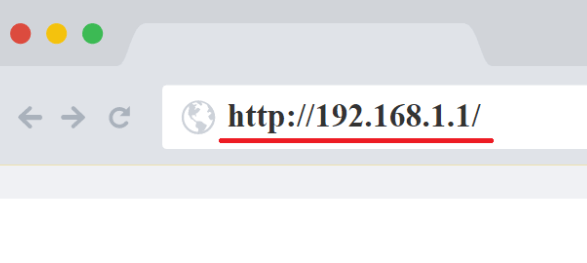
Enter the router address in your browser’s address bar: http://192.168.0.1. Make sure you type it in the address bar (not a search engine field). If the router is reachable, you’ll see a login page, a first-run setup wizard, or a vendor dashboard.
If the browser keeps trying to search the web, it’s usually a sign of a typo or that you are not on the router’s local network.
-
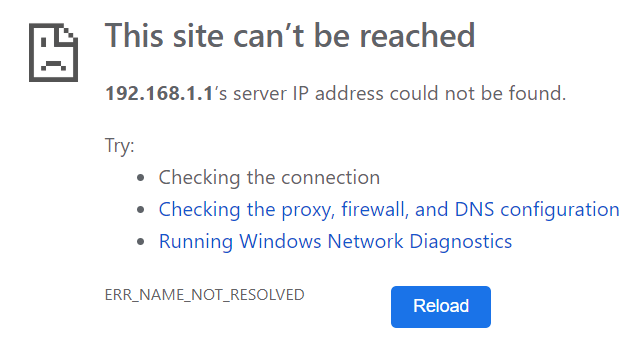
If nothing loads (or you get a timeout), your router may be using a different management IP. This happens frequently with ISP-provided gateways, mesh systems, or a LAN that was customized in the past. Common alternatives include 192.168.1.1, 192.168.1.254, and 10.0.0.1.
The quickest way to confirm the correct address is to check your device’s default gateway in network settings. On most systems, the default gateway shown for the active connection is the IP you should open in the browser.
If you are on mobile, be sure you are using Wi-Fi (not cellular data), and avoid guest networks or captive portals that may block access to internal addresses.
-
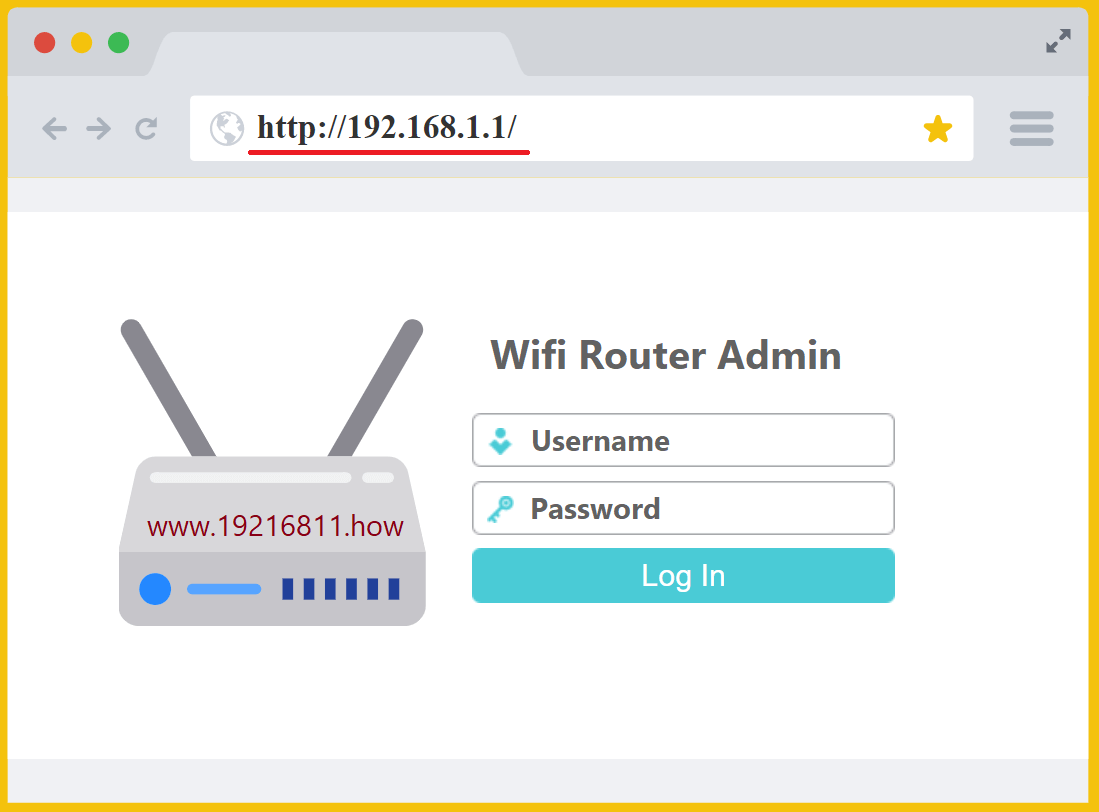
When the admin page opens, sign in using the router’s administrator credentials. If the password was changed and you don’t remember it, look for the vendor’s recovery instructions or follow the documented reset process (factory reset should be the last option).
If the device is new or was never customized, the default admin credentials are often printed on a sticker on the router (sometimes labeled “Admin Password” or “Web UI Password”). On many modern routers, you create the admin password during first-time setup—so there may be no universal default.
Security baseline: after you get in, replace default credentials immediately with a strong, unique admin password.
-
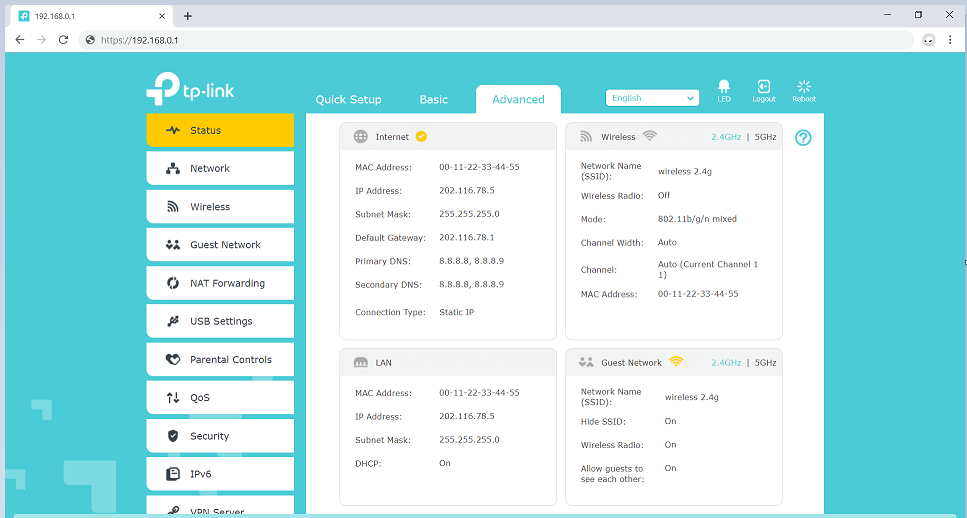
After login, review and update settings carefully. Some changes (WAN mode, PPPoE username/password, LAN IP changes) can briefly interrupt connectivity or trigger a reboot. If the router restarts, reconnect to Wi-Fi/Ethernet and reopen the admin page.
Operational best practice: export a configuration backup once the network is stable. If you ever need to reset the device, a backup can save significant time.
What to do after you log in
Harden Wi-Fi security
Start with wireless settings: rename the SSID if needed and set a strong passphrase. Prefer WPA3 when available, or WPA2-AES if not. If your router separates 2.4 GHz and 5 GHz, label them clearly (or enable band steering) so devices connect consistently.
Validate WAN status and DNS
If you have no internet, confirm whether the WAN is using the correct mode (DHCP vs PPPoE vs static). The status page usually shows link state, assigned IP information, and DNS servers. Setting a reliable DNS resolver at the router level can improve browsing reliability across all devices.
Create a guest network for visitors and IoT
Use a guest network for visitors and less-trusted devices (smart plugs, cameras, TVs). If the router supports isolation, enable it to prevent guest clients from reaching your main LAN devices such as NAS units or printers.
Update firmware and save a backup
Firmware updates help close security gaps and fix stability issues. After updating, verify connectivity and then export a configuration backup. Keeping a backup makes recovery straightforward if a reset is ever needed.
Review port forwarding and UPnP
If you use gaming services, remote access, or self-hosted apps, you may configure port forwarding. Keep rules specific (only required ports to a specific internal IP). Avoid DMZ unless you understand the risk. If UPnP is enabled, review connected apps/devices and disable UPnP if you don’t rely on it.
Use QoS for stability under load
QoS can reduce lag when multiple devices compete for bandwidth. If supported, prioritize real-time traffic (voice/video calls, gaming) and apply reasonable upload/download limits to prevent one device from saturating the link.
Troubleshooting 192.168.0.1 access problems
Problem: The admin page won’t open
- Confirm you’re on the same network as the router (Wi-Fi/Ethernet) and not using cellular data.
- Try another browser and an incognito/private session to avoid cached redirects.
- Compare the problem on another device connected to the same router, or use Ethernet. If a VPN changes local routing, check its local-network access setting or your organisation’s policy. Do not turn off DNS protection or the firewall just because a numeric IP page does not load.
- Check the default gateway shown by your device and open that IP instead.
- Power-cycle the router if it appears unresponsive and retry after it fully boots.
Problem: The page opens but you can’t log in
- Confirm you’re using the admin password (not the Wi-Fi password). They are often different.
- Verify you’re accessing the main router, not a secondary access point or mesh node with separate credentials.
- If the password is unknown, follow the vendor reset procedure; back up settings beforehand if possible.
Problem: Changes don’t apply or the UI behaves oddly
- Avoid guest networks that may block admin access to internal services.
- Try disabling browser extensions (ad blockers, script blockers) that can interfere with older web UIs.
- After large changes, wait for the router to apply settings; some updates require a restart.
Security best practices for router admin access
Your router controls traffic between your local network and the internet, so securing the admin interface matters. After you regain access, apply these practical safeguards:
- Set a strong, unique admin password and store it securely.
- Turn off remote administration unless it is required for your use case.
- Use WPA3 or WPA2-AES, disable WPS if unused, and keep Wi-Fi credentials separate from admin credentials.
- Keep firmware current and export a backup after major changes.
- Audit connected devices periodically and remove anything you do not recognize.
How to find your router IP address
Find the active default gateway in your device’s network settings. A failed browser request does not prove that a router exists at an address, and an unresponsive page does not prove that it is offline. Use the gateway guide below to verify the address independently.
Before changing settings
Change one setting at a time and keep the previous value. Back up the configuration if supported; the backup can contain private network information. After saving, verify the connection from a device you control. If access is lost, return to the last known working configuration before making more changes.
Frequently asked questions
Is this the right IP address?
Check the default gateway in your device’s network settings. Your router may use an address other than 192.168.0.1.
Why won’t the admin page open?
Compare the problem on another device connected to the same router, or use Ethernet. If a VPN changes local routing, check its local-network access setting or your organisation’s policy. Do not turn off DNS protection or the firewall just because a numeric IP page does not load.
Forgot your admin password?
Check the device label, saved passwords and provider documentation first. A factory reset is a last resort because it may erase Internet credentials, Wi-Fi settings and custom rules. Prepare the recovery details before following the manufacturer’s model-specific instructions. A normal restart is a different operation.