The complete 10.0.0.1 guide
10.0.0.1 belongs to the private 10.0.0.0/8 address range. It may be used by a home gateway, an office router or other local equipment. Its presence alone does not identify the manufacturer, Internet provider or type of Wi-Fi service.
Common address typing mistakes
Why does 10.0.0.0.1 not open?
Searches such as 10.0.0.0.1, 1.0.0.0.1, 10.0 0.1, 10 0.0.1, 10..0.0.1, 1o.0.0.1 can contain letters, missing dots or extra characters. If you mean 10.0.0.1, enter that exact address in the browser address bar. Use digits and dots; the letter l is not the number 1, and the letter o is not zero.
First check that your device lists 10.0.0.1 as its gateway. A similar-looking search does not establish your router's address or password.
Important for this address
The correct IPv4 address has four parts: 10.0.0.1. The five-part spelling 10.0.0.0.1 is invalid. A Wi-Fi payment or guest portal is not necessarily the administrator panel, even if it uses the same local address.
What is 10.0.0.1 used for?
Network vendors choose a default private gateway so the router has a consistent “front door” for configuration. 10.0.0.1 is a common choice because the 10.x.x.x range provides a large private address space and reduces the likelihood of overlap with other local subnets (especially in multi-router or business environments). If your router is set to 10.0.0.1, it usually serves two key roles: it routes LAN traffic to the internet and hosts the device’s configuration portal.
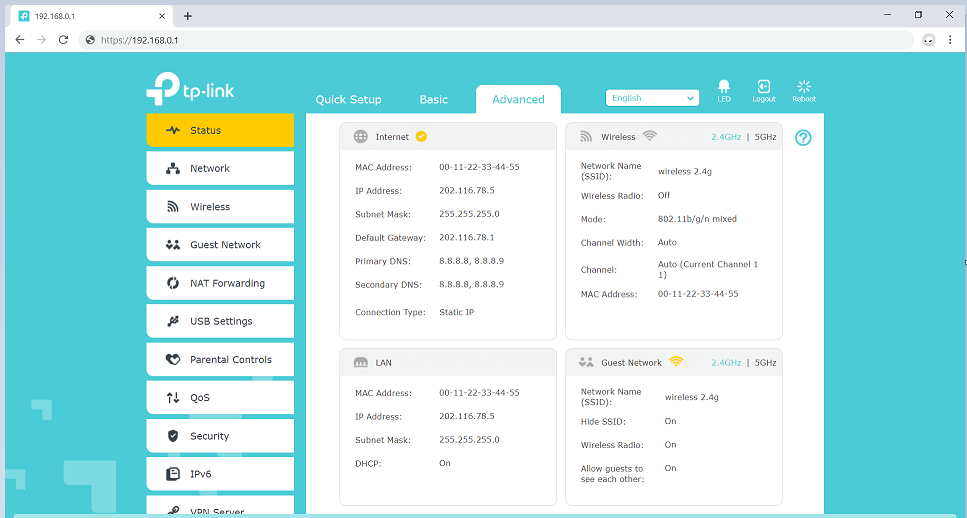
- Wireless settings: set SSID names, Wi-Fi passwords, WPA2/WPA3 security, channels, and band steering.
- WAN configuration: select DHCP, PPPoE, or static internet settings and review connection diagnostics.
- LAN addressing: manage DHCP pools, static leases, subnet settings, DNS servers, and IPv6 modes.
- Security & access: update admin credentials, manage firewall settings, guest Wi-Fi, and parental controls.
- Advanced networking: port forwarding, VPN options, QoS policies, logs, backups, and firmware updates.
Before you begin
Most 10.0.0.1 login problems are caused by basic network conditions rather than a “broken” router. Check these items before deeper troubleshooting:
- Confirm you are connected to the correct router network (right Wi-Fi SSID or Ethernet into the router/switch).
- Try an incognito/private browser window to avoid cached redirects, stale sessions, or saved credentials.
- For initial setup, Ethernet is often the fastest path to stable access because it avoids Wi-Fi signal variables.
How to login to 10.0.0.1
The steps below cover standard access and the most frequent edge cases (wrong gateway IP, blocked local access, and credential mix-ups). Note: some users mistakenly add “www” or attempt to search for the IP instead of opening it directly. Use the address bar and enter 10.0.0.1 exactly.
-
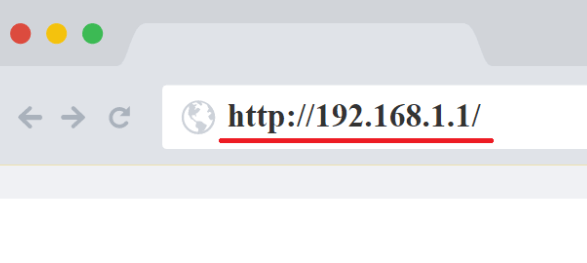
Open a web browser and type the router address into the address bar: http://10.0.0.1. If the router is reachable, you should see a login prompt or a setup screen. If you land on a search results page, you likely typed it into the search box or your browser redirected because of a typo.
If you get a certificate warning over HTTPS, use HTTP for the initial connection unless your router explicitly supports HTTPS on the LAN.
-
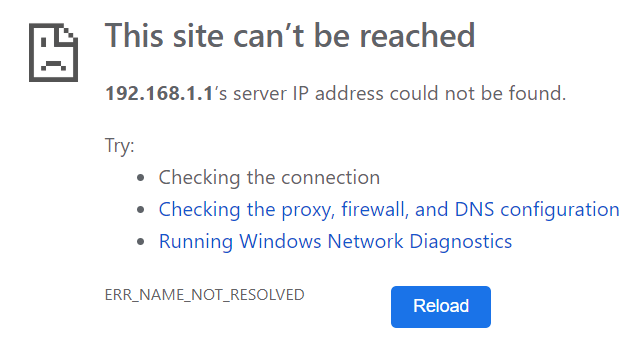
If the page times out, it may mean your router is using a different gateway address. This is common when you have more than one router, a mesh system, or an ISP device that uses its own default IP. Typical alternatives include 192.168.0.1, 192.168.1.1, and 192.168.1.254.
The most reliable way to find the correct router address is to check your device’s default gateway in network settings. That gateway IP is the address you should open in your browser.
Mobile tip: ensure you are on Wi-Fi, not cellular data, and avoid guest networks that may isolate clients from router management pages.
-
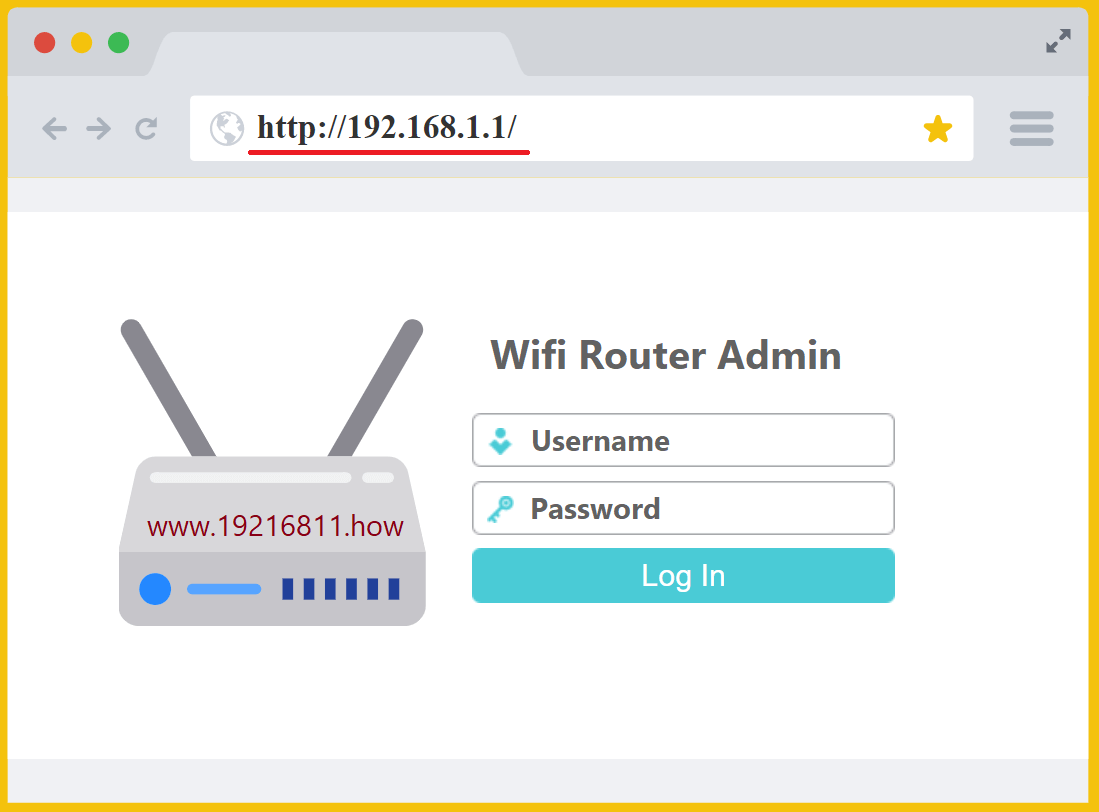
When the admin page loads, sign in with your router’s administrator credentials. Use the admin password (not the Wi-Fi password). If credentials were changed and are now unknown, follow the vendor’s recovery guidance or perform a reset only if you understand that it may revert internet settings and require reconfiguration.
On many devices, default admin details are printed on a label. On newer hardware, you may be asked to create an admin password during first-time setup, so there may not be a universal default.
Security recommendation: after successful login, set a strong, unique admin password and disable remote administration unless you truly need it.
-
After you sign in, update settings carefully. Changes like WAN mode, PPPoE credentials, or LAN subnet updates can temporarily disrupt connectivity and may trigger a router reboot. If the router restarts, reconnect to the network and reopen the admin page.
Best practice: once your network is stable, export a configuration backup so you can restore quickly after a factory reset or firmware upgrade.
Common tasks after login
Secure and optimize Wi-Fi
Update the Wi-Fi name (SSID) and set a strong passphrase. Prefer WPA3 if supported; otherwise use WPA2-AES. If the router offers both 2.4 GHz and 5 GHz, either label them clearly or enable band steering to improve device roaming and consistency.
Confirm internet settings and device IPs
If the internet is unstable, validate WAN mode and review status indicators (assigned IP, gateway reachability, DNS). On the LAN side, ensure the DHCP pool matches your subnet and that critical devices (NAS, printers, smart hubs) have stable addresses via DHCP reservations.
Use a guest network for visitors and IoT
A guest SSID reduces risk by separating less-trusted devices from your primary LAN. If isolation is available, enable it so guest devices cannot reach internal resources.
Keep firmware current and back up configuration
Firmware updates can address security vulnerabilities and improve stability. After upgrading, verify connectivity and export a backup configuration file for fast recovery.
Review port forwarding, VPN, and UPnP
Only open the ports you truly need, and map them to specific internal IPs. Avoid DMZ unless you understand the exposure. If UPnP is enabled, periodically review it and disable it if your environment does not require automatic port mapping.
Apply QoS for predictable performance
If your connection slows down under load, QoS can help. Prioritize real-time traffic (voice/video calls, conferencing, gaming) and consider setting sensible limits to prevent a single device from saturating upload bandwidth.
Troubleshooting 10.0.0.1 access issues
Issue: The admin page does not load
- Confirm your device is connected to the router network (Wi-Fi/Ethernet), not mobile data.
- Try an incognito/private window or a different browser to bypass cached redirects.
- Compare the problem on another device connected to the same router, or use Ethernet. If a VPN changes local routing, check its local-network access setting or your organisation’s policy. Do not turn off DNS protection or the firewall just because a numeric IP page does not load.
- Check your device’s default gateway and open that IP instead of 10.0.0.1.
- Reboot the router if the admin UI appears unresponsive, then retry after it fully boots.
Issue: The login page opens but credentials fail
- Verify you are using the router admin password, not the Wi-Fi passphrase.
- Confirm you are reaching the primary router and not a secondary access point or mesh node.
- If the admin password is unknown, follow the vendor’s reset process (factory reset as a last resort).
Issue: Settings don’t apply or the UI behaves inconsistently
- Avoid guest networks that may block access to internal management interfaces.
- Disable browser extensions that can break older admin pages (ad/script blockers).
- After major changes, wait for the router to apply settings; some changes require a restart.
Security recommendations for router admin panels
Your router is the control point between your private network and the public internet. After you regain access, apply these baseline protections to reduce risk:
- Change the admin password to a strong, unique value and store it securely.
- Disable remote management unless you have a clear operational need.
- Use WPA3 (or WPA2-AES), disable WPS if unused, and keep Wi-Fi and admin credentials separate.
- Update firmware regularly and keep a configuration backup after stable changes.
- Review connected devices and remove unknown clients.
How to find your router IP address
Find the active default gateway in your device’s network settings. A failed browser request does not prove that a router exists at an address, and an unresponsive page does not prove that it is offline. Use the gateway guide below to verify the address independently.
Before changing settings
Change one setting at a time and keep the previous value. Back up the configuration if supported; the backup can contain private network information. After saving, verify the connection from a device you control. If access is lost, return to the last known working configuration before making more changes.
Frequently asked questions
Is this the right IP address?
Check the default gateway in your device’s network settings. Your router may use an address other than 10.0.0.1.
Why won’t the admin page open?
Compare the problem on another device connected to the same router, or use Ethernet. If a VPN changes local routing, check its local-network access setting or your organisation’s policy. Do not turn off DNS protection or the firewall just because a numeric IP page does not load.
Forgot your admin password?
Check the device label, saved passwords and provider documentation first. A factory reset is a last resort because it may erase Internet credentials, Wi-Fi settings and custom rules. Prepare the recovery details before following the manufacturer’s model-specific instructions. A normal restart is a different operation.